If you're having problems viewing web pages or difficulties connecting to your Router, then
you've come to the right place.
Five things to try after first
Many of our customers with broadband connection problems find that the following steps after
help.
- 1. Make sure there are lights on your Router. If not, check the power cables are plugged
in properly and it's switched on at the mains.
- 2. Turn off your Router, computer and any devices you're trying to connect for five
minutes before restarting. This can really help.
- 3. There might be a temporary problem with the network that's affecting every broadband
connection in your area. You can check for network problems by calling us.
- 4. Broadband needs a working phone line. So check you can make a phone call and that
there's no noise on the line.
- 5. The issue may be with your internal telephone extensions rather than being a problem
with your phone line itself. You can easily check this by connecting your Router to your
test socket.
If we can't find a fault or fix the problem online, we'll give you the option to book an
engineer appointment.
If you can't connect to your Sparta Telecom Broadband, you can use you mobile internet
connection to access this information on our website to perform these checks.
Home wiring and broadband set-up - a checklist
If you're having trouble with your broadband, a few simple checks can get you up and running
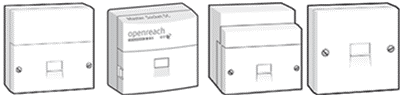
again. First, you'll need to check your type of master socket. This is the main telephone socket
where the phone line enters your home (usually found in the hallway near the front door).
 Check your wiring and set-up - single socket
If you're having trouble with your broadband connection there are a few simple checks that could
fix the problem straight away, saving you from having to call us. They might also help you avoid
paying any unnecessary engineer call-out changes.
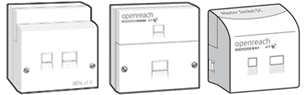
Follow these steps if your master socket has one socket, like this:
Step 1: Check your phone line is working properly
Problems with your phone line can affect your broadband, so start by checking it's working
properly. Plug a phone straight into your master socket and listen for a dial tone. If there's
no dial tone or the line is noisy, you can get the landline problems fixed, just report a fault
by calling us immediately.
Step 2: Hub check
Check all cables are firmly plugged in. The broadband cable (grey ends) must be plugged into
your Router and the other end into the microfilter socket (usually marked "DSL" or "ADSL"). Make
sure the power cable is connected to your Hub and the power socket.
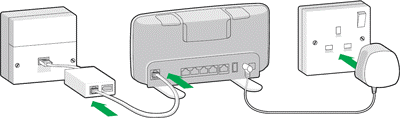
Check that the Router is switched on and the lights are steady blue
Step 3: Master socket and microfilters check
You must use a microfilter for every phone socket in your home with any phone or broadband
equipment plugged in (including your Router, phones, answer machines, digital TV boxes, and
alarm systems).
Step 4: Set up rules and scenarios
- ✓ The microfilter must be the first thing connected to the master socket, followed by
any other equipment.
- ✓ Avoid using extension cables for your Router as they may cause problems with your
connection. If you must use one, then use a new, high quality broadband ADSL extension
cable.
- ✓ To connect more than one device to your phone line, you'll need a splitter. The
splitter must connect to the phone part of the microfilter.
- ✓ Some other TV services such as Sky need a phone line, in which case the TV box must
connect to the phone part of your microfilter. Please refer to your user guide or TV
service provider for help.
If your master socket has a line across the middle, remove the faceplate by undoing the two
screws or unclipping the faceplate. Gently pull the lower part of the faceplate forwards. On the
right hand side you'll find a test socket. Connect your Hub to this test socket through a
microfilter and try connecting.
![]()
By using this test socket you bypass all internal phone wiring. So if your broadband now works,
it points to a problem with your internal wiring (phone extensions) or with something plugged in
to an extension.
Screw the faceplate back on and then unplug everything that's connected to a phone socket in
your property (phones, answer machines, digital TV boxes and so on). Plug things back in one at
a time, checking to see if one of them is causing broadband problems. If there is still a
problem call us on 0800 915 9396
Does your master socket have a single socket with no line across the middle?
![]()
This is usually what an extension socket looks like. If all your sockets look like this, then
one of them will be your master socket. It's most likely to be the one nearest where your line
comes into your home.
You'll need to unplug all equipment connected to every phone socket in your property (phones,
answer machines, digital TV boxes like Sky and so on). Now connect your Hub to the master phone
socket using a microfilter and see if your broadband works.
![]()
If your connection works then it means that something you've unplugged was causing the problem.
Plug things back in one at a time to see which one might be causing the problem.
If your broadband connection problems seem down to your internal wiring, you can get a local
electrician in to check your wiring. Or, we can arrange an Openreach engineer come and sort it
out for you for a £105.00 + Vat.