Phoneline

Where every connection
brings you joy.

Check Availability

Voip Plans

High-Speed Connectivity

Sparta Home Line

  • Upload speed upto 30 Mbps
  • Seamless Switching
  • Dedicated Free Full Support
  • No Price Rise Guarantee
  • Number Flexibility
  • Keep Your Same Number
  • 24-Month Contract
£35

£20.00

/month

Sparta Home Line

  • Upload speed upto 30 Mbps
  • Seamless Switching
  • Dedicated Free Full Support
  • No Price Rise Guarantee
  • Number Flexibility
  • Keep Your Same Number
  • 24-Month Contract
£35

£25.00

/month

WHY CHOOSE US

Customer Satisfaction
Is Our Goal.

Unlimited data usage with no caps or restrictions.

High-speed broadband connectivity for seamless internet access.

Flexible contract options
with no long- term
commitments.

24/7 customer support
for assistance and
troubleshooting.

Easy setup and
Installation process for
hassle-free activation.

OUR SERVICES

Your Gateway to Seamless
Connectivity

FREQUENTLY ASKED QUESTIONS

Learn More about our platform
by user questions

Broadband speed: What is it and how does it work?
Fibre optic, copper, throughput speeds, ADSL and more. If you're confused by broadband terms, we can help. Broadband is something that millions of us use every day on our laptops, tablets and phones to stay in touch, work and play. Broadband speeds vary depending on many factors, including the technology and your location. Let's take a closer look.

What is headline speed?
This is the speed you'll see advertised on internet products and in adverts. There are various broadband technologies available, each capable of offering different headline speeds. Some of the common ones are:

  • ADSL: The original broadband technology delivers speeds of up to 8Mbps
  • ADSL2+: The first significant improvement delivers speeds of up to 17Mbps
  • FTTC: This is used in fibre to the cabinet and delivers speeds of up to 76Mbps
  • FTTP: This is used in fibre to the premises and delivers speeds of up to 1000Mbps

What is connection speed?
Broadband speed is the rate that information is received (download speed) or sent (upload speed) on your broadband line. It's measured in 'Mbps' ('megabits per second'). We're constantly investing in technology to give you faster broadband speeds – even at peak times – and we always give you the best possible broadband speed.

What is throughput speed?
Throughput speed is the speed at which you can actually send and receive data. It's what you experience at home when using your broadband connection. It's also the actual speed you get on your device when you run a speed test. This can't be higher than the connection speed. The throughput speed is affected by a wide range of things like the time of day, and the number of devices using your Hub at the same time. It also depends if you’re using a wired or wireless connection.

How are broadband speeds measured?
Broadband speeds are measured in megabits per second or Mb (sometimes Mbps). Each megabit is made up of 1,000,000 bits or 1,000 kilobits. The more megabits, the faster your broadband. Faster broadband speeds means faster downloads. You can download music and movies quicker, stream from services like Netflix without waiting, and make video calls more smoothly.

How do broadband speeds work?
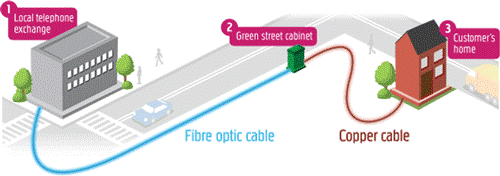
Broadband typically comes into your home through your telephone line. There are two main types of cable for doing this - copper or fibre optic - with different connection speeds.
  • Copper: This is used to deliver ADSL and ADSL2+ broadband from the telephone exchange to your house. The longer the length of copper, the weaker the signal strength and the slower your broadband line will have to operate
  • Fibre optic broadband: Faster than copper, speedy fibre optical cables run from the telephone exchange to the street cabinets. Copper cables are then used to connect a cabinet to your house. This is called fibre to the cabinet. The maximum broadband speed you get depends on the distance from your house to the cabinet. The closer you are from cabinet to home, the faster your broadband. With fibre to the premises your maximum broadband speed isn’t dependent on distance as a fibre cable is connected all the way to your house


Which Broadband option is right for me?
Ask our Team, they will get you the best option for you, they will tell you what is available in your area, and our prices are most competitive. You will need to tell them what type of line you have now, if it’s a copper line you may be able to upgrade to fibre, just ask.

Improve your Broadband speed if slow
From checking your router position to keeping your PC secure, here you can get useful advice on speeding up your broadband. By understanding what affects your broadband and making some simple changes, you can enjoy faster broadband speeds. If your broadband was fine, and you've just seen a big drop in your speed, it might be down to a network issue in your area. (call us to check if there is a problem on your line)

These are the most important things that affect your broadband speed:

  • ✓ How close you live to your telephone exchange.
  • ✓ The length and quality of the phone wiring in your home (this doesn't apply to fibre optic broadband like Sparta Xtream).
  • ✓ Whether all your broadband microfilters are correctly installed.
  • ✓ The processing speed of your computer, router or modem.
  • ✓ The speed of the connection between your computer and your modem or router e.g. using an Ethernet cable is faster than a wireless connection i.e. WiFi.

If you're having problems viewing web pages or difficulties connecting to your Router, then you've come to the right place.
Five things to try after first
Many of our customers with broadband connection problems find that the following steps after help.

  • 1. Make sure there are lights on your Router. If not, check the power cables are plugged in properly and it's switched on at the mains.
  • 2. Turn off your Router, computer and any devices you're trying to connect for five minutes before restarting. This can really help.
  • 3. There might be a temporary problem with the network that's affecting every broadband connection in your area. You can check for network problems by calling us.
  • 4. Broadband needs a working phone line. So check you can make a phone call and that there's no noise on the line.
  • 5. The issue may be with your internal telephone extensions rather than being a problem with your phone line itself. You can easily check this by connecting your Router to your test socket.

If we can't find a fault or fix the problem online, we'll give you the option to book an engineer appointment.
If you can't connect to your Sparta Telecom Broadband, you can use you mobile internet connection to access this information on our website to perform these checks.

Home wiring and broadband set-up - a checklist
If you're having trouble with your broadband, a few simple checks can get you up and running again. First, you'll need to check your type of master socket. This is the main telephone socket where the phone line enters your home (usually found in the hallway near the front door).
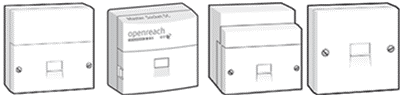

Check your wiring and set-up - single socket
If you're having trouble with your broadband connection there are a few simple checks that could fix the problem straight away, saving you from having to call us. They might also help you avoid paying any unnecessary engineer call-out changes.

Follow these steps if your master socket has one socket, like this:


Step 1: Check your phone line is working properly
Problems with your phone line can affect your broadband, so start by checking it's working properly. Plug a phone straight into your master socket and listen for a dial tone. If there's no dial tone or the line is noisy, you can get the landline problems fixed, just report a fault by calling us immediately.

Step 2: Hub check
Check all cables are firmly plugged in. The broadband cable (grey ends) must be plugged into your Router and the other end into the microfilter socket (usually marked "DSL" or "ADSL"). Make sure the power cable is connected to your Hub and the power socket.
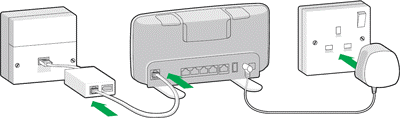
Check that the Router is switched on and the lights are steady blue

Step 3: Master socket and microfilters check
You must use a microfilter for every phone socket in your home with any phone or broadband equipment plugged in (including your Router, phones, answer machines, digital TV boxes, and alarm systems).

Step 4: Set up rules and scenarios
  • ✓ The microfilter must be the first thing connected to the master socket, followed by any other equipment.
  • ✓ Avoid using extension cables for your Router as they may cause problems with your connection. If you must use one, then use a new, high quality broadband ADSL extension cable.
  • ✓ To connect more than one device to your phone line, you'll need a splitter. The splitter must connect to the phone part of the microfilter.
  • ✓ Some other TV services such as Sky need a phone line, in which case the TV box must connect to the phone part of your microfilter. Please refer to your user guide or TV service provider for help.

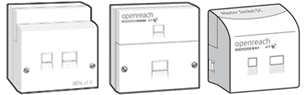
If your master socket has a line across the middle, remove the faceplate by undoing the two screws or unclipping the faceplate. Gently pull the lower part of the faceplate forwards. On the right hand side you'll find a test socket. Connect your Hub to this test socket through a microfilter and try connecting.
By using this test socket you bypass all internal phone wiring. So if your broadband now works, it points to a problem with your internal wiring (phone extensions) or with something plugged in to an extension.

Screw the faceplate back on and then unplug everything that's connected to a phone socket in your property (phones, answer machines, digital TV boxes and so on). Plug things back in one at a time, checking to see if one of them is causing broadband problems. If there is still a problem call us on 0800 915 9396

Does your master socket have a single socket with no line across the middle?

This is usually what an extension socket looks like. If all your sockets look like this, then one of them will be your master socket. It's most likely to be the one nearest where your line comes into your home.

You'll need to unplug all equipment connected to every phone socket in your property (phones, answer machines, digital TV boxes like Sky and so on). Now connect your Hub to the master phone socket using a microfilter and see if your broadband works.

If your connection works then it means that something you've unplugged was causing the problem. Plug things back in one at a time to see which one might be causing the problem.

If your broadband connection problems seem down to your internal wiring, you can get a local electrician in to check your wiring. Or, we can arrange an Openreach engineer come and sort it out for you for a £105.00 + Vat.
Minimum Guaranteed Access Line Speed

The broadband line speed you can get will vary depending on a number of factors such as how far away your home is from the local telephone exchange and the length of your line.

When we look at all the customers who have a similar type of line (for example, customers who are 3km from the exchange) and the same level of service (for example, all with 'up to 8Mbps broadband'), the 'Minimum Guaranteed Access Line Speed' is the fastest speed that any customer in the bottom 10 per cent of that group of customers can get.

So, if there are 20,000 customers who fall into the group covered by this example, we would look at the 2,000 customers with the slowest speeds. The Minimum Guaranteed Access Line Speed would be the fastest speed that any of those 2,000 customers actually achieve.

If your line speed is significantly lower than the estimated range that we quoted when you placed your order you should contact us on 0800 915 9396. We will always try to improve your line speed. If the cause of the problem is outside our control, we will endeavour to explain the possible causes to you and how you may be able to address the problem.

If the fault is within our control and we are unable to resolve, you may be entitled to cancel your broadband contract without paying a charge for ending it early.

Cancellation of your service will be subject to the following conditions:

  • ✓ The fault must be reported within the first 90 days of your contract start date.
  • ✓ Speed faults will not be accepted within the first 10 days initial stabilisation period.
  • ✓ All checks within your home must be completed as requested by our Helpdesk advisors.
  • ✓ At least one Openreach engineer visit must be accepted if your line speed result from a speedtest is below the Minimum Guaranteed Access Line Speed.
  • ✓ Sparta Telecom is allowed up to 28 days to resolve the fault.
  • ✓ You will be able to cease without penalty if Sparta Telecom is still unable to improve the speed measured by our speedtest above your Minimum Guaranteed Access Line Speed.
  • ✓ The Minimum Guaranteed Speed relates to line speed only, not to download speeds.
  • ✓ Go to http://www.supportal-test.co.uk/ and run a speed test, remember to enter your telephone number at the bottom of the result so its recorded

Here are some simple manual steps to get your Sparta broadband connection up and running again. Perform a 'power cycle'
Many connection problems are solved by 'power cycling' - which is simply shutting down and turning off your Sparta modem, and computer in a controlled manner, then turning everything back on again.
Try restarting your Sparta modem first, then your Hub.

Check your phone line is working
Problems with your phone line can affect your broadband so it's useful to check it's working.

Have you checked your leads?
If there are no lights lit up on either your Sparta modem or Hub, check that their power cables aren't loose, and double check that they're plugged in properly and switched on at the mains. You should also check that the cable from the Sparta modem to your Hub is securely connected at both ends. If you're using an Ethernet cable to connect your Hub to your computer, make sure that's also securely plugged in at both ends. When you push the connector in, you should hear a click as it locks into place.

Is your computer compatible?
If you didn't check your computer was compatible before ordering Sparta Broadband or you've just changed to a new computer, your problem may lie here. Please check the computer requirements page and upgrade any components that do not meet the minimum standard.

Do you have security software installed and enabled?
If you don't then it could be that your connection is running slowly because of a virus or trojan or spyware. If you haven't done so already, then we recommend installing one of the Sparta security software to deal with these specific problems and generally keep you safe online.

Can't connect wirelessly?
Electrical items such as microwaves and halogen lighting can interfere with wireless connections. You'll also have an unreliable wireless connection if your computer is only just in range of your Hub or router. Your computer might not be able to find the wireless signal from the Hub. Or you might be able to see the signal, but your computer can't connect to it. No link given below to get more help setting up or fixing a wireless connection.

First check your phone as your broadband comes down the same wire. Listen for anything unusual with the sound from the phone, try dialing or call your number from another phone just to make sure you don’t have a faulty line.

There can be a number of reasons your broadband may drop. If you are running a lot of programs at the same time, they could be taking up resources which means there is not enough resource to transmit on the broadband. If you are running a lot of programs at the same time, try closing a few to release resources.

Internet Security software blocking websites
If you were able to load websites until you updated your browser or windows update or until your Internet security software was updated, reconfigured or a new one was added, your Internet security software (including firewalls, antivirus programs, anti-spyware programs, and more) is likely preventing your browser from connecting to the Internet.

You can also get this if website is no longer at the URL you typed in or if the website is slow you may see error code timed out.

In general, you should make sure your Internet security software is up-to-date and remove your browser from your program's list of trusted or recognized programs, then add it back.

If you still have problems give us a call on 0800 915 9396

Firstly make a note if the fault is seen to be inside or outside the property, i.e. hanging or broken wires.

What the fault is i.e. noise on line, calls dropping, what you are experiencing, the more detail the better.

You can call us on 0800 915 9396

Our team can check the line for you to see if a problem is shown (you may have to disconnect the call for this test to be done) The team will call you back with the result.

If they can fix the fault they will, if not it may mean arranging an Openreach engineer to call to trace and fix the fault.

You will be asked to accept the engineer charge as below. If you do not accept the charge

(Please note if the fault is found to be your own equipment such as, wires or your socket you will be asked to pay for the visit currently £105 + Vat. If the fault is found to be outside of your property anywhere from the exchange to the point where the line enters your property, this is classed as a network fault and is not chargeable)

What Sparta Telecom service do you have a problem with?
Remember to tell us if the fault is with your landline phone or broadband or both

Give us a call on 0800 915 9396 to check the progress of your fault report or if the fault is still occurring call us and let us know.

Sometimes a fault may be intermittent which are difficult to detect, always let us know if this is the case. Where we have arranged an Openreach engineer, it may be that work is required in the road or the exchange, which may take a bit longer, you can call us to get an update.